
Zyminex IPTV Not Working? Step-by-Step Fixes for IPTV Buffering and Errors
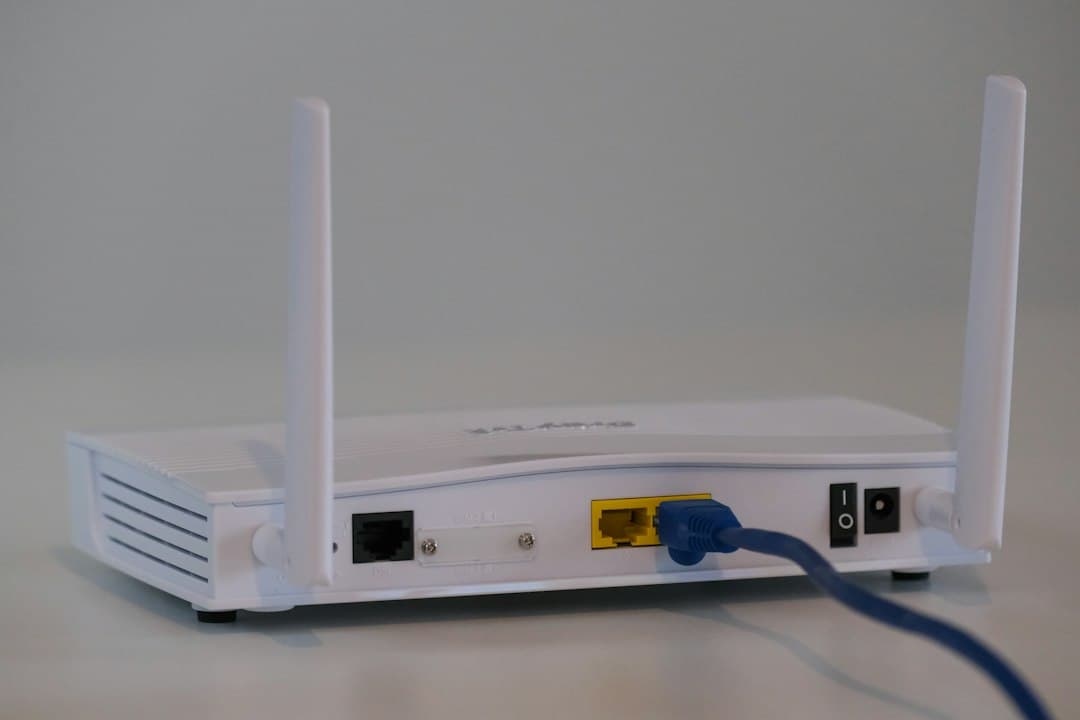
When Zyminex IPTV is not working, the cause is almost always close to home: a device that needs a restart, a weak Wi-Fi signal, an outdated player app or a login that was typed with one wrong character. The good news is that most cases of IPTV not working can be fixed in a few minutes without any technical knowledge. This guide walks you through the checks in the order that solves the most problems first, and tells you exactly what to send our support team if nothing helps.
Work through the steps one at a time and test a channel after each one. That way you'll know which step fixed it, which is useful if the problem ever comes back.
Before you start: what does "not working" look like?
It helps to name the symptom, because each one points to a different fix:
| What you see | Most likely cause | Go to step |
|---|---|---|
| Nothing loads, "login failed" or "invalid" | Login details entered incorrectly | Step 4 |
| Channels load, then freeze or buffer | Network or Wi-Fi | Steps 1–2 |
| The app crashes or keeps repeating a few seconds | App needs an update or a cache clear | Step 3 |
| One channel doesn't play, others do | That single stream | Step 6 |
| It stops when someone else starts watching | Device limit of your plan | Step 5 |
| You never received a login | E-mail landed in spam | Step 4 |
Step 1: Restart your device and your router
It sounds too simple, but a full restart clears more Zyminex IPTV problems than anything else. Streaming sticks and Smart TVs run for weeks without a real reboot, and their memory fills up.
- Close the player app completely.
- Unplug your TV, stick or box from power for about 30 seconds (a "sleep" button is not a restart).
- Unplug your router and modem, wait 30 seconds, plug them back in and wait until all the lights are steady.
- Turn your device back on, open the app and try a channel.
If the picture now plays smoothly, the problem was a stuck device or a router that needed a fresh start.
Step 2: Fix IPTV buffering at the network
IPTV buffering means your device isn't receiving the stream fast enough or steadily enough. Zyminex IPTV uses anti-freeze technology on its side, but the last stretch, from your router to your screen, is in your hands.
- Use a cable if you can. An Ethernet cable from the router to your TV or box is the most reliable fix for buffering. Many Firestick users add an Ethernet adapter for the same reason.
- Improve the Wi-Fi. Move the router closer, keep it out of cabinets, or use the 5 GHz network if your router offers one and the device is in the same room.
- Free up the connection. Large downloads, game updates and other streams on the same network compete with your TV. Pause them and test again.
- Lower the quality for a moment. If a 4K channel buffers but the HD version of the same channel plays well, your connection is the bottleneck at that moment, not the service.
Test at the time you normally watch. A connection that's fine at noon can be busy in the evening when everyone in the house is online.
Step 3: Update the player app and clear its cache
The app you use to watch Zyminex IPTV, such as TiviMate, OTT Navigator, iMPlayer, IBO Player, GSE Smart IPTV or IPTVX, is made by a third party. An outdated version or a full cache can make the app crash, repeat a few seconds of video or show an empty channel list.
- Check your device's app store for an update and install it.
- On Android TV, Google TV and Fire TV, go to Settings → Applications → your player app → Clear cache. Don't choose "Clear data" unless you're ready to enter your login again.
- Inside the app, look for a "reload playlist", "update playlist" or "refresh EPG" option and run it.
- Restart the app.
If the app keeps crashing after an update, try another player from the setup guide. The same login works in any compatible app.
Step 4: Check your Zyminex IPTV login details
A login error is the most common reason Zyminex IPTV shows "invalid" or loads nothing at all. After your payment is confirmed, your details arrive by e-mail as an M3U link and as Xtream Codes (a username, a password and a server URL).
- Didn't receive the e-mail? Look in your spam or junk folder first, and search your inbox for the order.
- Copy, don't retype. Usernames and passwords are case-sensitive. A capital letter, a missing character or an extra space at the end is enough to fail.
- Check the server URL. Enter it exactly as it appears in the e-mail, including
http://and the port number if there is one. - Pick the right login type. In apps like TiviMate, choose "Xtream Codes" and fill in all three fields, rather than pasting the M3U link into the wrong place.
Our setup guide explains where each field goes for every device.
Step 5: Check how many devices are watching
You can install your login on several devices, but a 1-device plan streams on one device at a time. If a second TV or phone starts playing, the first one can stop or refuse to load. This often looks like Zyminex IPTV not working when it's really the plan limit.
Close the app on devices you aren't using. If your household regularly watches on two or three screens at once, a 2- or 3-device plan fixes it for good, and support can quote a price for 4 or more devices.
Step 6: When only one channel or title fails
If every channel plays except one, the problem is that single stream rather than your Zyminex IPTV setup. Try the channel again a little later, or switch to another version of it (an HD instead of a 4K version, for example). If it stays down, tell support which channel it is, so it can be checked.
Step 7: Contact Zyminex IPTV support on WhatsApp
Still not working? Zyminex IPTV support is available 24/7 on WhatsApp. To get a fast answer, send:
- the device and the app you use (for example "Fire TV Stick, TiviMate"),
- what you see on screen, ideally with a photo of the error,
- which steps above you already tried,
- your username or the e-mail address you ordered with (never your password in a public place).
Every subscription comes with a 7-day money-back guarantee: if you run into a technical problem that support can't fix, you get a refund. Please contact support before opening a dispute with your payment provider. The details are in our refund policy, and the contact page has the WhatsApp link.
FAQ: Zyminex IPTV not working
Is IPTV down right now?
If your channels stop, first check whether other internet services work on the same device. If they do and you've restarted everything, message Zyminex IPTV support on WhatsApp; support can tell you whether there's a known issue or whether it's your setup.
Why is IPTV not working on my Firestick?
On a Fire TV Stick, the usual causes are a weak Wi-Fi signal, an app that needs an update or a full cache, and a login entered in the wrong fields. Restart the stick, clear the app cache and re-enter your Xtream Codes. Our Firestick guide covers the setup step by step.
Why does my IPTV keep crashing or repeating?
An app that crashes or replays the same few seconds usually needs an update or a cache clear (step 3). If it continues, the connection may be dropping for a moment, so try a cable or move closer to the router.
What to do if IPTV is not working after a restart?
Check your login details (step 4) and how many devices are streaming (step 5). If those are fine, send support the device, the app and a photo of the error.
How do I fix IPTV buffering?
Use a wired connection where possible, pause other downloads and streams, and test the HD version of a channel. If buffering only happens in the evening, your home network is likely busy at that time.
Get Zyminex IPTV working again
Most cases of Zyminex IPTV not working come down to a restart, the network, the app or the login, in that order. Work through the steps, test after each one, and if you're still stuck, our support team is there day and night on WhatsApp. New to the service? Start with the free 24-hour trial to test your own device and connection, then pick a plan on the subscription page. For more help, see the FAQ or our post on Zyminex IPTV in 4K.
Try Zyminex IPTV yourself?
Test it free on your own device. If you like it, keep watching from $15 a month.
Request your free trialMore articles

Zyminex IPTV in 4K: What You Need for Sharp 4K IPTV Streaming
Watch Zyminex IPTV in 4K: the TV, streaming device, connection and player settings you need for sharp 4K IPTV, and how to test it free first.
October 21, 2026
Zyminex IPTV and the Best IPTV Service: 8 Points That Matter
What makes the best IPTV service? Eight checks on trial, pricing, devices, support and refunds, and how Zyminex IPTV measures up on each one.
October 21, 2026
Zyminex IPTV Canada: Canadian Channels in English and French
Zyminex IPTV for Canada: channels from Toronto, Montreal and Vancouver in English and French, plus US and international TV. Free 24-hour trial.
October 21, 2026