Zyminex IPTV on Firestick: How to Set Up IPTV on Your Fire TV Stick
The Amazon Fire TV Stick is one of the easiest ways to turn any TV with an HDMI port into an IPTV screen, and Zyminex IPTV works on it out of the box. If you searched for "iptv firestick" because you want a clear, start-to-finish setup, this guide is for you. We'll cover which app to use, how to get it onto the stick, how to enter your login, and the small settings that make the difference between a smooth picture and a frustrating one.
Everything here is specific to the Fire TV Stick and Fire TV. If you watch on several kinds of devices, our setup guide for every device covers Smart TVs, Android boxes, iPhone and computers too.
What you need for Zyminex IPTV on a Firestick
Before you start, check that you have these four things:
- A Fire TV Stick or Fire TV device connected to your TV and signed in to an Amazon account.
- A stable internet connection. A strong Wi-Fi signal near the TV, or a wired connection through an Ethernet adapter, gives the best results.
- Your login details. After your payment is confirmed, Zyminex IPTV sends them by e-mail. The e-mail holds an M3U link and an Xtream Codes login (username, password and server URL). If it isn't in your inbox, check your spam folder.
- About ten minutes for the first setup.
Don't have a subscription yet? You can request a free 24-hour trial first. No credit card is needed, and your trial login arrives the same way as a paid one, so this whole guide works for the trial too.
Choosing the best IPTV app for Firestick
Zyminex IPTV supplies the channels and the login; the app you watch in is a separate, third-party player. For the Fire TV Stick, the player we point Zyminex IPTV customers to is TiviMate, installed with the Downloader app. It reads your Xtream Codes login, shows a full TV guide (EPG) with channel logos, and handles a large channel list well, which matters with 29,000+ live channels and 100,000+ movies and series.
Other Xtream Codes players also run on the stick. IPTV Smarters is a common example, and some people prefer its layout. It's a third-party app like TiviMate: any player that accepts an Xtream Codes login or an M3U link can work. If you're unsure which IPTV app for Firestick suits you, start with TiviMate and only switch if something about the interface bothers you.
A quick note on safety: install player apps only from their official sources, and never type your login into an app or website that you don't recognize.
How to download IPTV on Firestick, step by step
The Fire TV Stick only installs apps from the Amazon Appstore by default. TiviMate isn't listed there, so you first allow apps from outside the store, then use Downloader to fetch the app.
Step 1: Turn on Developer Options
- From the Fire TV home screen, open Settings (the gear icon).
- Select My Fire TV, then About.
- Highlight the first item (your device name) and press the center button on the remote seven times. A message confirms that you're now a developer.
- Go back one screen. A new Developer Options menu appears under My Fire TV.
Step 2: Allow apps from unknown sources
Open Developer Options and switch on Apps from Unknown Sources (on newer models this setting is per app, so you'll allow Downloader specifically in the next step). This is the setting that lets the stick install a player from outside the Amazon Appstore.
Step 3: Install the Downloader app
Go back to the home screen, open search, type Downloader and install the app from the Amazon Appstore. Open it once and allow the permissions it asks for. If your Fire TV asks whether Downloader may install unknown apps, say yes.
Step 4: Install TiviMate
Use Downloader to download and install TiviMate from the app's official source. When the installer finishes, choose Install, then Done. You can delete the downloaded installer file afterwards to free up space; the app stays installed.
That's the whole answer to "how to install IPTV on Firestick": the stick, permission for unknown apps, Downloader, and the player.
Adding your Zyminex IPTV login to the app
Open TiviMate and choose to add a playlist. You'll see two options, and your Zyminex IPTV welcome e-mail contains both:
| Login type | What you enter | Best for |
|---|---|---|
| Xtream Codes | Server URL, username, password | Dedicated IPTV players like TiviMate; brings in the TV guide, logos and VOD posters |
| M3U link | One long URL | Players that only accept a playlist link |
On a Firestick we recommend Xtream Codes: it loads the program guide and the on-demand library in a tidier, TV-like layout. Type the details exactly as they appear in the e-mail. The server URL, username and password are case-sensitive, and a single wrong character is the most common reason a login fails.
Once the Zyminex IPTV playlist loads, give the app a minute to pull in the guide data. You'll find US channels (including local channels from cities such as New York, Los Angeles and Chicago), Canadian channels in English and French, and international channels from the UK, Germany, France, Spain, India and the Nordic countries. Sports and pay-per-view events are part of every plan.
Tips for a smooth picture with IPTV on Firestick
A Fire TV Stick is small, and a few habits keep Zyminex IPTV running well on it:
- Restart the stick now and then. Hold Select and Play/Pause together for a few seconds, or unplug it for a minute. This clears memory and often fixes a stuttering stream.
- Keep the stick close to your router, or use an Ethernet adapter. Weak Wi-Fi is the most common cause of buffering on streaming sticks.
- Close apps you don't use. Background apps compete for the stick's limited memory.
- Use the TV guide. In TiviMate, the EPG lets you browse what's on without zapping through thousands of channels.
- Plan your screens. You can install your login on several devices, but a 1-device plan streams on one device at a time. If the Firestick in the living room and a phone upstairs need to play at once, choose a 2-device or 3-device plan.
If a stream still won't play smoothly, our troubleshooting guide walks through the fixes in order, and support is there 24/7 on WhatsApp.
Is Zyminex IPTV the best IPTV for Firestick?
"Best" depends on what you watch and where. What we can tell you is what you get with Zyminex IPTV on a Fire TV Stick:
- 29,000+ live channels and 100,000+ movies and series, in 4K Ultra HD, Full HD and HD, with anti-freeze technology and automatic content updates.
- Plans for 1, 2 or 3 devices, from $15 for one month on one device, with no contract and prices in USD.
- A free 24-hour trial with no credit card, so you can judge the picture on your own stick and connection.
- A 7-day money-back guarantee if support can't fix a technical problem.
To compare providers on the points that actually matter, read our guide to choosing the best IPTV service. And if you have a 4K TV, see what you need for 4K IPTV, including which Fire TV models can play it.
Firestick IPTV questions
How do I download IPTV on my Firestick?
Turn on Developer Options and allow apps from unknown sources, install the Downloader app from the Amazon Appstore, then use it to install a player such as TiviMate from its official source. Add your Xtream Codes login and the channels load.
How do I install IPTV on Firestick without a computer?
You don't need a computer at all. Every step, from enabling unknown sources to installing the player and typing your login, happens on the Fire TV Stick with the remote, so you can set up Zyminex IPTV from the couch.
What's the best IPTV player for Firestick?
For Zyminex IPTV we recommend TiviMate on the Fire TV Stick: it handles a large channel list and shows a full TV guide. Any player that accepts an Xtream Codes login or an M3U link, such as IPTV Smarters, can also work.
How do I use the Firestick remote for IPTV?
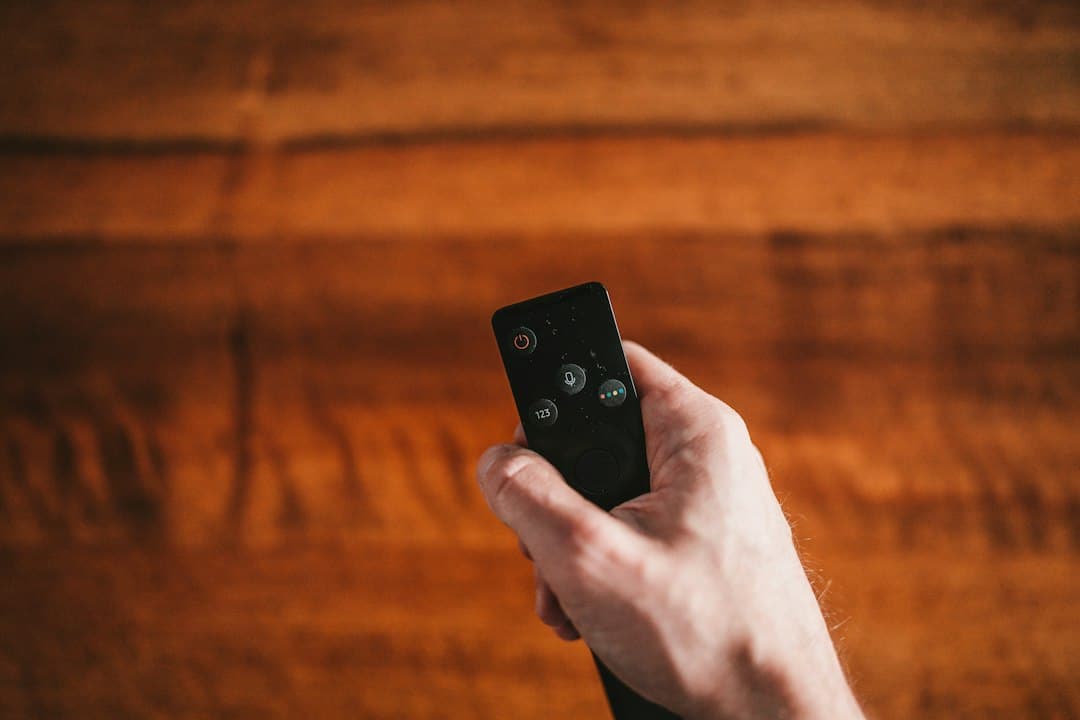
Use the directional pad to move through the channel list and the TV guide, the center button to open a channel, and Back to return. In TiviMate, pressing the center button while a channel plays opens the channel list without stopping the picture.
Can I use one Zyminex IPTV login on two Firesticks?
You can install it on both, but a 1-device plan streams on one device at a time. To watch on both sticks at once, choose a 2-device plan.
Start watching Zyminex IPTV on your Firestick
Setting up Zyminex IPTV on a Fire TV Stick comes down to four moves: allow unknown apps, install Downloader, install TiviMate, and enter your Xtream Codes login. After that, you have live TV, sports, movies and series on your TV with nothing more than a small stick and your internet connection.
Want to try IPTV on your Firestick before you pay? Request your free 24-hour trial, or compare the Zyminex IPTV plans and pick the one that fits your household.
Try Zyminex IPTV yourself?
Test it free on your own device. If you like it, keep watching from $15 a month.
Request your free trialMore articles

Zyminex IPTV in 4K: What You Need for Sharp 4K IPTV Streaming
Watch Zyminex IPTV in 4K: the TV, streaming device, connection and player settings you need for sharp 4K IPTV, and how to test it free first.
October 21, 2026
Zyminex IPTV and the Best IPTV Service: 8 Points That Matter
What makes the best IPTV service? Eight checks on trial, pricing, devices, support and refunds, and how Zyminex IPTV measures up on each one.
October 21, 2026
Zyminex IPTV Canada: Canadian Channels in English and French
Zyminex IPTV for Canada: channels from Toronto, Montreal and Vancouver in English and French, plus US and international TV. Free 24-hour trial.
October 21, 2026